How to Use Diller in HiP?
Customer Club manual for Employees
1. When the items have been entered at the register, ask if the customer is a member of the customer club. If they say yes,press the gray button
“Customer” to open the search window.
2. Enter the customer’s mobile number and click the “Customer Club” button – not the “Search” button
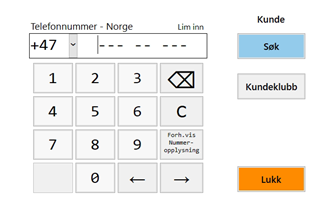
3. When you click OK the customer will be looked up in the customer program.
If the customer is a member of the customer club, a window will appear with all coupons available to the customer. If there are multiple coupons available, click the one that makes the most sense and click “OK”. The Blue line indicates the coupon(s) that will be used.
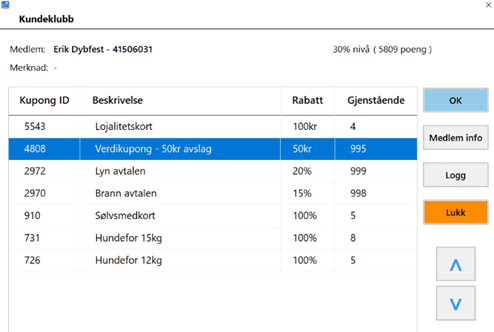
Here you can see the member's name and phone number, as well as bonus points balance and membership level. For now you can only use 1 coupon/discount per transaction. You can also view detailed member information by clicking “Member Info” and all purchase history for the customer by clicking “Log.”
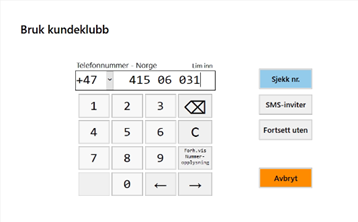
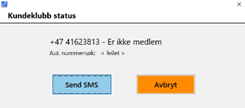
4. If the customer is not a member of the customer club ask if they would like to join. If they say yes, you can click “Send SMS”, and if they do not want it, click “Cancel”.
NB! Remember that 84% say yes to joining the customer club when asked!
5. If you have not looked up a member, a prompt will appear when you choose payment. You can easily look up the number to see membership status. If the customer is a member, you can select “Use” so that the purchase and any point earning are logged to the customer. If the customer is not a member, you can invite them in the same way as above, or choose “Continue without” if they do not want to become a member.