
PCK Employee Discount v2 Manual
How does employee discount work at the register?
Step 1: Ring up the items for the customer
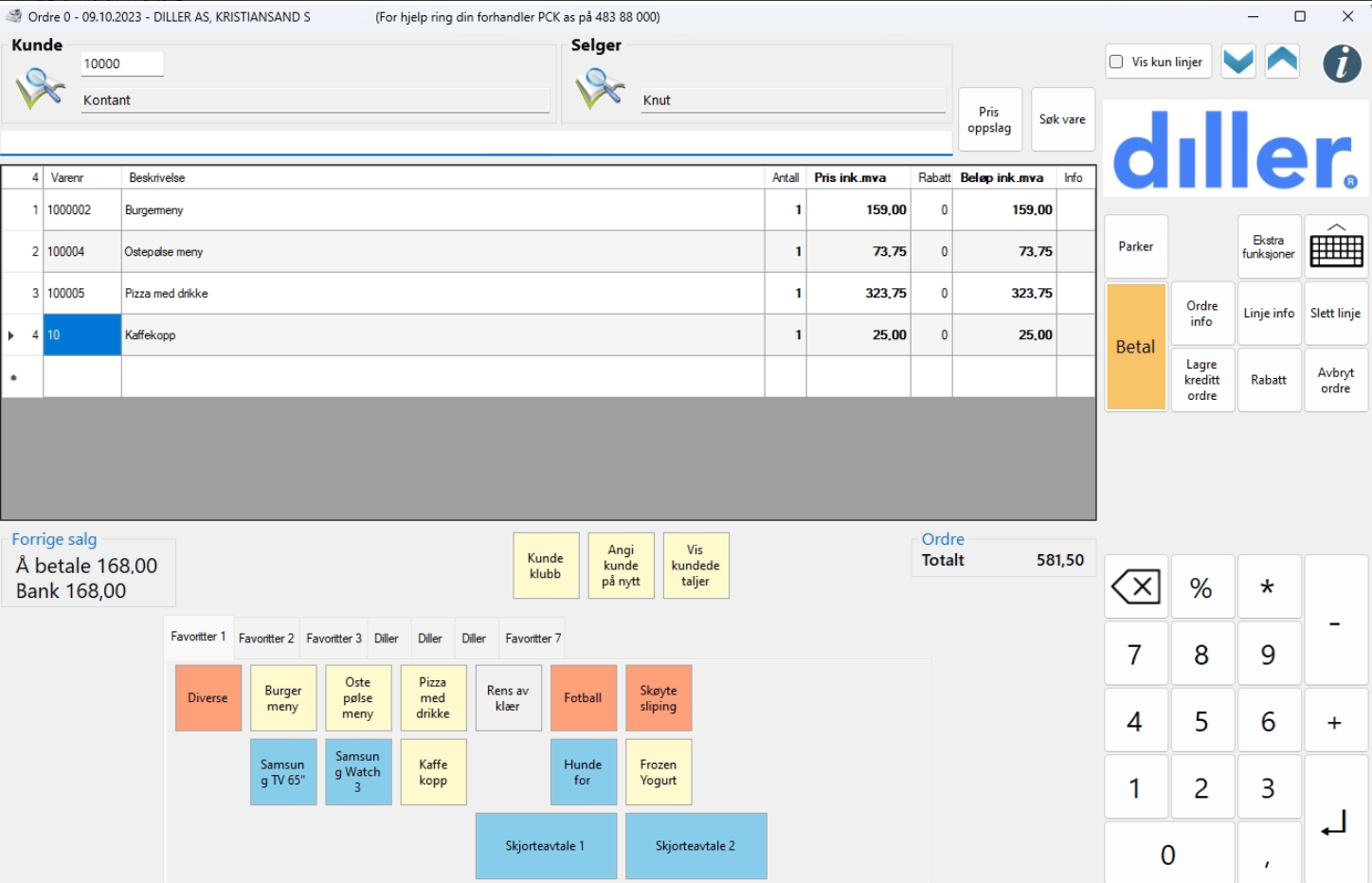
Step 2: Look up the customer by tapping the Customer Club button in the favorites section
(The button can be named whatever you want it to be named, so that it belongs to your club)

Step 3: Enter the customer's mobile number
Enter the customer's mobile number and press OK
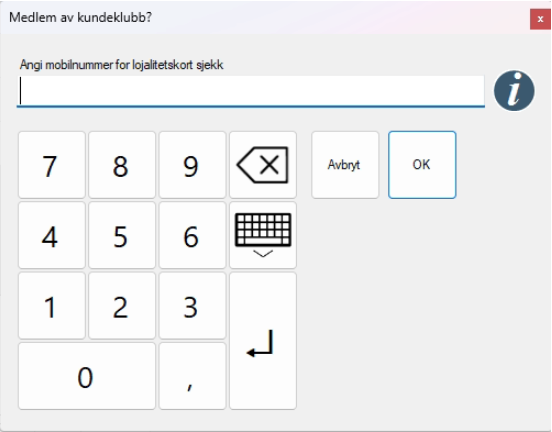
If the customer is a member, they automatically receive the Coupons / Discounts / Stamp Card that the customer is entitled to.
If the customer has multiple coupons that are a subtotal discount, you must choose which one to use.
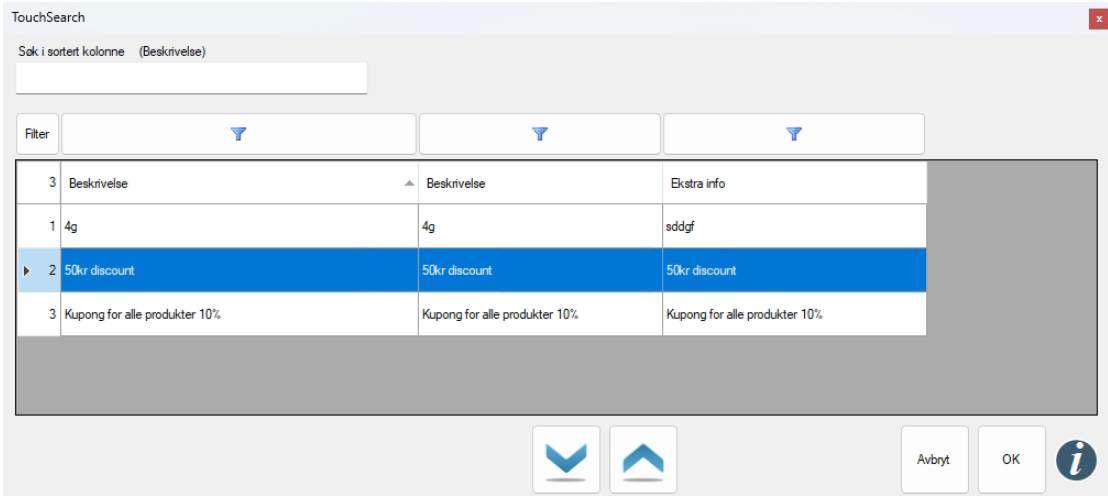
Add more items after lookup, and it will be validated against coupons and stamp cards again before any payment.
Note! The checkout will ensure that items do not receive double discounts. Or that items with a percentage discount do not generate a stamp (and vice versa)
Note! Welcome coupon and birthday coupon do not work on items that have a stamp card, are discounted, or have another coupon applied.
Step 4: If the customer is not a member (New Member)
When you look up the customer and they are not a member, you will see the following message on the screen:
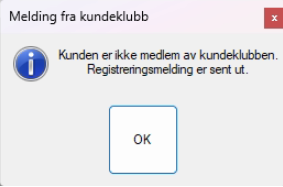
Press OK or X to send an SMS to the customer so they can become a member.
If you do not want automatic enrollment at lookup, you can contact us for an alternative solution.
Then we set up two different buttons for you - one that only checks membership, and another that also invites so that employees themselves can choose which to use
The customer will have the purchase registered to them even before they consent
Note! If they do not agree to join the club within 10 days, all data about the customer is deleted.
Step 5: See what benefits the customer has
To see what benefits a customer has, click the button: "Show customer details" in the favorites menu
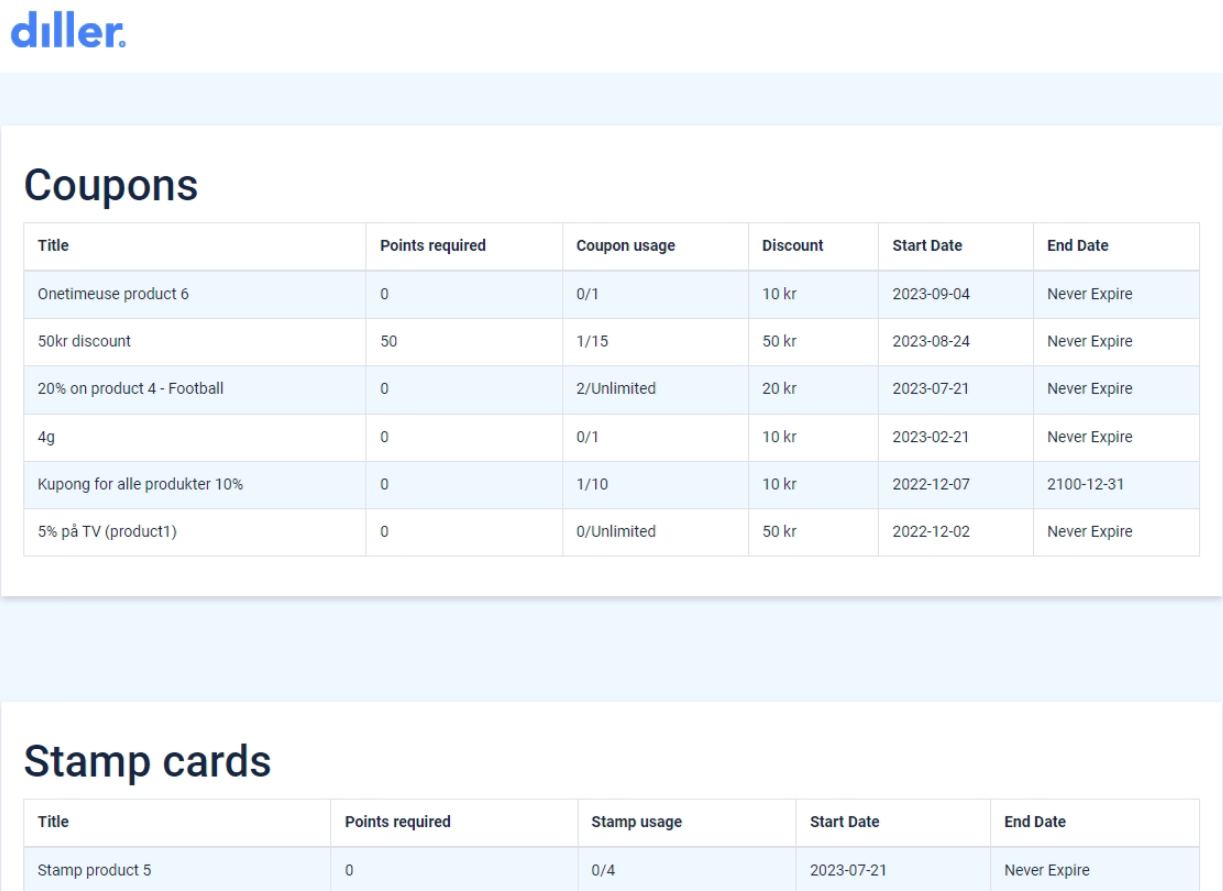
It will now search the club to see which coupons and any stamp card the customer has, and they will be displayed on your screen like this:
Change member?
Entered the wrong number, or the customer changes their mind and a new customer is going to shop?
Then press the Cancel Order button in the Pckassa
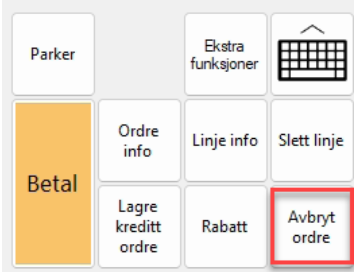
To switch member, perform a new lookup. If the transaction should not be registered to a member, cancel the order.